In a world where screens dominate how we work, study, and relax, the distance between your eyes and your monitor is no longer a trivial detail. It directly affects eye comfort, posture, productivity, and long-term musculoskeletal health. Many people adjust chair height or keyboard placement but overlook monitor distance, even though it plays a central role in visual ergonomics.
This article provides a comprehensive, professional guide to how far a monitor should be from your eyes, grounded in ergonomics, vision science, and workplace health standards. Whether you work in an office, study at home, game for hours, or use multiple monitors, this guide will help you set up a healthier and more comfortable viewing environment.
Table of Contents
- Why Monitor Distance Matters
- How the Eyes Work When Viewing Screens
-
Recommended Monitor Distance: The Standard Guidelines
-
Screen Size, Resolution, and Distance: How They Interact
-
Monitor Distance and Eye Strain
-
Monitor Distance and Neck, Shoulder, and Back Health
-
Single vs. Dual vs. Ultrawide Monitor Setups
-
Monitor Distance for Laptops vs. Desktop Monitors
-
Monitor Distance for Different Tasks
-
How to Measure and Adjust Your Monitor Distance
-
Common Monitor Distance Mistakes
-
Monitor Distance in Ergonomic Standards (OSHA, ISO, and Others)
-
Monitor Distance for Glasses and Contact Lens Users
-
Monitor Distance for Children and Students
- Frequently Asked Questions (FAQ)
1. Why Monitor Distance Matters
Monitor distance is one of the three pillars of visual ergonomics, alongside monitor height and viewing angle. If your screen is too close, your eyes must work harder to focus, increasing fatigue. If it’s too far, you may lean forward unconsciously, straining your neck and shoulders.
An optimal distance allows:
- Relaxed eye focus
- Minimal head and neck movement
- A neutral sitting posture
- Clear text without squinting
Over time, a poorly positioned monitor can contribute to:
- Digital eye strain
- Headaches
- Neck and shoulder pain
- Reduced concentration and productivity
2. How the Eyes Work When Viewing Screens
To understand ideal monitor distance, it helps to know how the eyes focus.
Accommodation and Eye Fatigue
When you look at an object, the lens inside your eye changes shape to focus. This process is called accommodation. The closer the object, the more effort the eye muscles must exert.
- Very close screens require continuous accommodation
- Prolonged close focus can increase fatigue
- A moderate distance allows the eye muscles to remain more relaxed
Unlike printed paper, digital screens also emit light, which adds to visual workload through brightness, contrast, and glare.
3. Recommended Monitor Distance: The Standard Guidelines
The General Rule
Most ergonomic and occupational health organizations agree on this range:
A monitor should be positioned about 50–75 cm (20–30 inches) from your eyes.
This distance corresponds roughly to:
- An arm’s length away
- The range where text is readable without leaning forward or squinting
Why This Range Works
- Reduces excessive eye accommodation
- Keeps most of the screen within your natural field of vision
- Minimizes head and neck movement
For most people, this range provides a balance between visual clarity and physical comfort.
4. Screen Size, Resolution, and Distance: How They Interact
Monitor distance cannot be considered in isolation. Screen size and resolution significantly influence how far your monitor should be.
Screen Size
-
Small monitors (21–24 inches): Often comfortable at the closer end of the range (50–60 cm)
-
Medium monitors (27 inches): Typically best around 60–70 cm
- Large or ultrawide monitors (32 inches and above): Often require 70–80 cm or more
Resolution and Scaling
Higher-resolution displays (such as 4K) can be viewed comfortably from slightly closer distances because text remains sharp. However, if text appears too small, users may lean forward, defeating the ergonomic benefit.
Proper system scaling is essential to maintain comfortable viewing without reducing distance.
5. Monitor Distance and Eye Strain
What Is Digital Eye Strain?
Digital eye strain, sometimes called computer vision syndrome, includes symptoms such as:
- Dry or irritated eyes
- Blurred vision
- Headaches
- Difficulty refocusing
How Distance Affects Eye Strain
-
Too close: Increases accommodative demand and blink reduction
- Too far: Causes squinting and forward head posture
An optimal distance allows:
- A relaxed gaze
- Normal blinking
- Less frequent refocusing
Distance alone does not eliminate eye strain, but it is a critical foundational factor.
6. Monitor Distance and Neck, Shoulder, and Back Health
Monitor distance strongly influences posture.
Too Close
- Forces head retraction or downward gaze
- Encourages slouched posture
- Increases upper back strain
Too Far
- Encourages leaning forward
- Increases neck flexion
- Places load on cervical spine and shoulders
When distance is correct:
- Head stays aligned over shoulders
- Back remains supported by the chair
- Shoulders stay relaxed
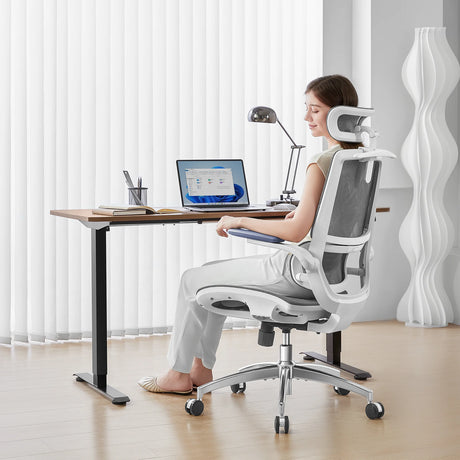
Monitor distance and chair ergonomics work together to support a neutral posture.

7. Single vs. Dual vs. Ultrawide Monitor Setups
Single Monitor
- Center the monitor directly in front of you
- Distance measured from eyes to screen center
Dual Monitors
There are two common setups:
-
Primary monitor centered:
Place the main monitor directly in front
Secondary monitor slightly angled -
Equal-use dual monitors:
Place monitors symmetrically
Center the seam between them
In both cases, distance should be measured to the primary viewing area.
Ultrawide Monitors
Ultrawide screens require:
- Greater distance to keep edges within peripheral vision
- A slight curve (if available) to reduce head movement
Distance often exceeds standard recommendations but should still allow clear text without leaning.
8. Monitor Distance for Laptops vs. Desktop Monitors
Laptop Screens
Laptops often create ergonomic challenges because:
- Screen and keyboard are fixed together
- Users tend to place them too close
Recommended approach:
- Use an external keyboard and mouse
- Raise the laptop screen
- Position the screen at standard monitor distance
Desktop Monitors
Desktop monitors offer greater flexibility and are easier to position correctly, making it easier to achieve optimal distance.
9. Monitor Distance for Different Tasks
Office Work and Writing
- Standard distance (50–70 cm)
- Text-based tasks benefit from clarity and stability
Graphic Design and Video Editing
- Slightly closer distance may help with detail
- Must be balanced with proper scaling
Gaming
- Competitive gaming often encourages closer viewing
- However, prolonged close distance increases strain
A compromise distance with proper font and UI scaling is healthier for long sessions.
Reading and Research
- Consistent distance reduces refocusing fatigue
- Adjust text size rather than leaning forward
10. How to Measure and Adjust Your Monitor Distance
Step-by-Step Adjustment
- Sit back fully in your chair
- Keep your head upright and relaxed
- Extend your arm forward
- Your fingertips should roughly touch the screen
This arm’s-length method provides a practical starting point.
Fine-Tuning
- If text is too small, increase system scaling
- If you lean forward, move the monitor closer or enlarge text
- If your eyes feel strained, move it slightly farther back
Small adjustments can make a noticeable difference.
11. Common Monitor Distance Mistakes
Placing the Monitor Too Close
Often seen with laptops and small desks. Leads to:
- Eye fatigue
- Neck strain
Compensating With Poor Posture
Leaning forward instead of adjusting distance creates long-term musculoskeletal problems.
Ignoring Font and Display Settings
Distance should not be adjusted alone. Text size, contrast, and brightness must support comfortable viewing.
12. Monitor Distance in Ergonomic Standards
Occupational Health Guidance
Many workplace ergonomics guidelines converge on similar recommendations:
- Monitors placed at arm’s length
- Screen comfortably readable without forward leaning
- Combined with proper monitor height and angle
While exact numbers vary, the emphasis is on individual comfort within a safe range, not rigid measurements.
13. Monitor Distance for Glasses and Contact Lens Users
Glasses
- Progressive lenses may require specific distances
- Screen should align with the lens’ intermediate zone
Contact Lenses
- Generally allow more flexibility
- Still require standard distance for reduced strain
Users with corrective lenses may benefit from small distance adjustments to match their prescription.
14. Monitor Distance for Children and Students
Children often:
- Sit closer than recommended
- Use laptops or tablets extensively
Encouraging proper distance early:
- Reduces eye fatigue
- Promotes healthier posture habits
Adjustable desks, external keyboards, and monitor stands are especially helpful for students.
15. Frequently Asked Questions (FAQ)
How far should a monitor be from your eyes exactly?
For most people, 50–75 cm (20–30 inches) is ideal. This range balances visual comfort and posture.
Is an arm’s length a good rule for monitor distance?
Yes. An arm’s length is a practical and reliable guideline for most setups.
Can sitting too far from a monitor cause problems?
Yes. Sitting too far can lead to squinting, leaning forward, and neck strain.
Does a larger monitor need to be farther away?
Generally, yes. Larger or ultrawide monitors often require increased distance to keep the entire screen within comfortable view.
Should I move my monitor closer if I have eye strain?
Not necessarily. Eye strain can result from brightness, contrast, glare, or font size. Adjust these before changing distance.
Is monitor distance more important than monitor height?
Both are equally important. Distance affects eye focus and posture, while height affects neck alignment.
How does monitor distance affect productivity?
A properly positioned monitor reduces discomfort, allowing longer periods of focused work with fewer breaks caused by fatigue.
Do standing desks change the ideal monitor distance?
No. The distance remains the same; only the height changes. Your eyes should still be about an arm’s length from the screen.
Conclusion: Finding the Right Distance for Long-Term Comfort
So, how far should a monitor be from your eyes? The answer lies in a balance between science and individual comfort. While 50–75 cm is the widely accepted ergonomic range, the ideal distance ultimately depends on screen size, resolution, task type, and personal vision needs.
Rather than forcing your body to adapt to your screen, adjust your screen to support your body. A well-positioned monitor reduces eye strain, supports healthy posture, and creates a more sustainable and productive work environment.
Taking a few minutes to optimize monitor distance today can prevent years of discomfort tomorrow.